Tutorial: Meadow Quest (2D RPG)
8. Title screen & music
A title card that waits for Space before the hero can move, and a chiptune loop playing in the background.
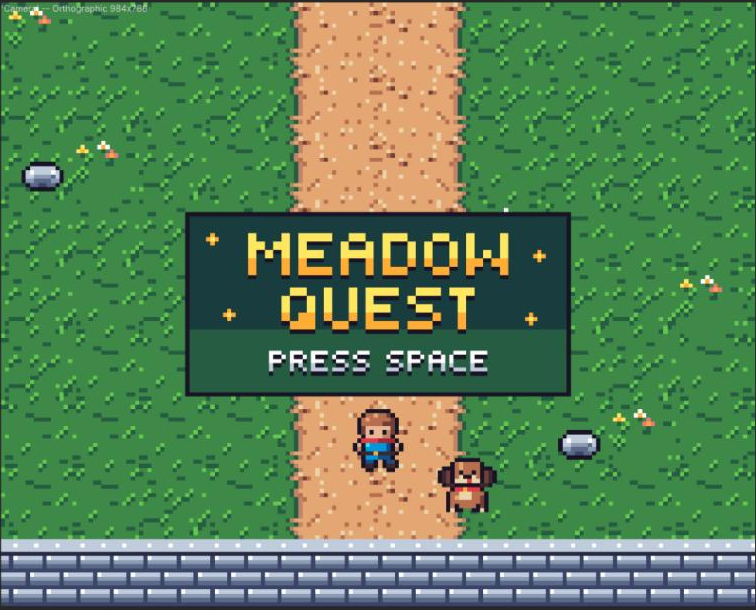
How the title screen works
There's no menu system to set up: the title is a sprite with a small script, and a global
variable started that is 0 until the player presses Space.
while started < 0.5:   title sits on the camera;   if Jump pressed: started = 1, title moves away
HeroMove:              speed = 5 × started          (0 until the game starts)
Jump is a built-in action bound to Space and a gamepad's bottom button.
How to add the title card
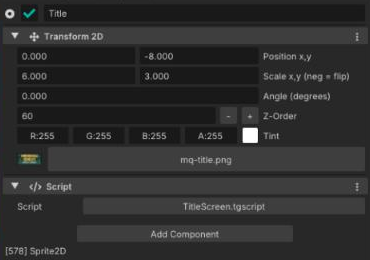
- Right-click the Hierarchy, then 2D Sprite. Rename it
Title. - Image
mq-title, Scale6,3(the image is 96×48 pixels: 6×3 tiles), Z-Order60so it covers everything. - Script Editor > + New,
TitleScreen, and build (or paste) this graph:

//!tgscript v1
//! script name=TitleScreen
//! region graph
//! node 1 OnUpdate pos=(60,80)
export function onUpdate(ctx) {
    //! node 2 GetGlobal pos=(260,120) global=started
    const n2_value = ctx.getGlobal("started");
    //! node 3 ConstNumber pos=(260,240)
    const n3_value = 0.50;
    //! node 4 Less pos=(460,120)
    const n4_out = (n2_value < n3_value);
    //! node 5 Branch pos=(660,80)
    if (n4_out) {
        //! node 6 FindEntity pos=(660,260) entity=Camera
        const n6_value = ctx.findEntity("Camera");
        //! node 7 GetEntityPosition2D pos=(860,260)
        const n7_value = ctx.getEntityPosition2D(n6_value);
        //! node 8 SetPosition2D pos=(1060,80)
        ctx.setPosition2D(n7_value);
        //! node 9 ActionPressed pos=(1060,260) action=Jump
        const n9_value = ctx.actionPressed("Jump");
        //! node 10 Branch pos=(1260,80)
        if (n9_value) {
            //! node 11 ConstNumber pos=(1260,260)
            const n11_value = 1.00;
            //! node 12 SetGlobal pos=(1460,80) global=started
            ctx.setGlobal("started", n11_value);
            //! node 13 ConstVec2 pos=(1460,260)
            const n13_value = ctx.vec2(200.00, 240.00);
            //! node 14 SetPosition2D pos=(1660,80)
            ctx.setPosition2D(n13_value);
        }
    }
}
//! endregion- Compile, Save, and pick
TitleScreen.tgscriptin the Title's Script slot.
How to hold the hero until the game starts
Open HeroMove from Part 4 and make the speed depend on started:
- Add GetGlobal (
global=started) and MulNumber. - Wire the speed ConstNumber (5) and GetGlobal into MulNumber, and MulNumber
into ScaleVec3
s(where the ConstNumber used to go). - Compile, Save.
//!tgscript v1
//! script name=HeroMove
//! region graph
//! node 1 OnUpdate pos=(60,80)
export function onUpdate(ctx) {
    //! node 2 ActionVector2 pos=(260,80) action=Move
    const n2_value = ctx.actionVector2("Move");
    //! node 3 ConstNumber pos=(60,200)
    const n3_value = 5.00;
    //! node 9 GetGlobal pos=(60,320) global=started
    const n9_value = ctx.getGlobal("started");
    //! node 10 MulNumber pos=(260,240)
    const n10_out = (n3_value * n9_value);
    //! node 4 ScaleVec3 pos=(460,120)
    const n4_out = ctx.scaleVec3(n2_value, n10_out);
    //! node 5 Vec3X pos=(660,80)
    const n5_out = ctx.vec3X(n4_out);
    //! node 6 Vec3Y pos=(660,200)
    const n6_out = ctx.vec3Y(n4_out);
    //! node 7 MakeVec2 pos=(860,120)
    const n7_out = ctx.makeVec2(n5_out, n6_out);
    //! node 8 SetVelocity2D pos=(1060,120)
    ctx.setVelocity2D(n7_out);
}
//! endregionPlay: the title waits over the meadow, the hero can't move. Press Space: the
title is gone, and the game is on. Stop resets started, so the title is back next time.
How to add music
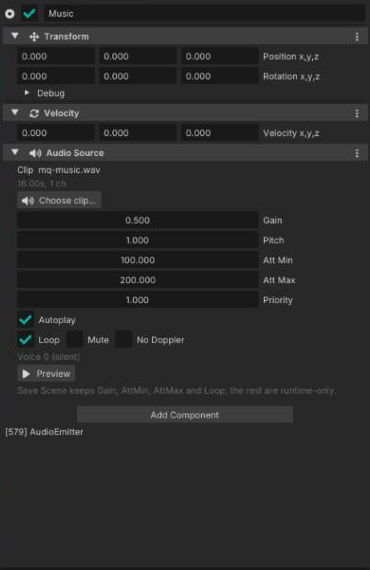
- Import a music file (
.wav,.ogg,.mp3or.flac). This guide's loop is mq-music.wav. - Right-click the Hierarchy, then Audio Source. Rename it
Music. The editor adds the audio system to the scene by itself. - In the Audio Source section, click Choose clip… and pick your file.
- Set Gain
0.5, Att Min100and Att Max200. Autoplay and Loop are already ticked. - Play. Browsers keep sound off until you click or press a key on the page, so click into the Simulation panel once if you hear nothing.
Good practices
- Gate gameplay on one flag. Everything that should wait (the hero now; enemies later)
multiplies or branches on
started. One flag, one place to look. - Keep the title on the camera, like the WIN banner, so it's centred whatever the camera does.
- Music at about half volume. Gain
0.5leaves room for sound effects later. Players turn music down far more often than up. - Loop cleanly. A loop should end on the beat it starts on; the editor's clip Preview in the Inspector lets you listen to the join.
- Mind the licence. Use music you made, or music whose licence allows games (for example CC0 from OpenGameArt). Keep a note of where each file came from.
- Sound effects (a coin chime, a gate creak) are Audio Sources that a script starts with PlayAudio; Part 12 adds them.
This part's assets
mq-title.png ·
TitleScreen.tgscript ·
HeroMove.tgscript (the version above) ·
mq-music.wav, each with its .mt. The music is a
16-second chiptune loop made for this guide; use it in your own games freely.
