Logic & UI
Visual scripting
Giving objects behaviour with node graphs in the Script Editor, with no code and no compiler to install.
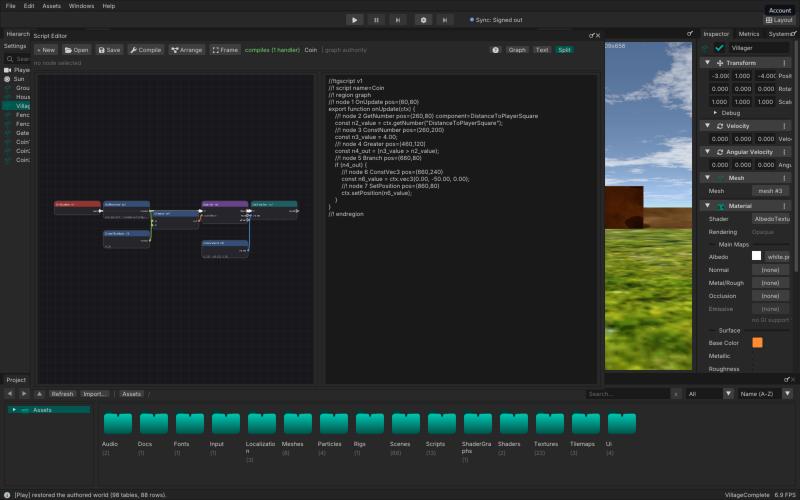
A visual script (.tgscript) is a small node graph that runs once per frame for every
entity it is attached to. The editor compiles it to WebAssembly in the browser.
The Script Editor
Open Windows > Script Editor. Its toolbar:
| Button | Does |
|---|---|
| New | creates Assets/Scripts/<name>.tgscript with a starter graph |
| Open | opens an existing script |
| Save | writes the file. Attached entities pick it up. |
| Compile | checks and compiles. The status reads e.g. compiles (1 handler). |
| Arrange / Frame | tidy the layout / zoom to fit |
| Graph · Text · Split | edit as nodes, as text, or both side by side |
Working with nodes:
- Space opens the node search. Type
Branch,KeyDown,SetPositionand so on. - Drag from an output pin to an input pin to connect them. Drop a wire on empty space to create a node that is already wired up.
- White (exec) wires set the order things happen in. Coloured wires carry values: numbers, vectors, true/false.
- The Text tab is the same graph as readable JavaScript-like text. Edit either side and the other follows. The graph is the source of truth; the text is a view of it.
If a graph can't run (for example, it reads a component the entity doesn't have), the editor lists a refusal that explains why, instead of silently doing nothing.
Attaching a script
- Select a 3D object (a mesh primitive or an imported mesh) in the Hierarchy.
- In the Inspector, scroll to the Script section and click the slot that reads (none).
- Pick your
.tgscript.
The same script can be attached to many entities, and each one runs it on its own data. Attaching a script automatically schedules the ScriptRun system.
Your first script: drift
The starter graph from New already works: it moves the object by its own velocity. Here is an even simpler one that slides an object along +X at 1.5 units per second:
//!tgscript v1
//! script name=Drift
//! region graph
//! node 1 OnUpdate pos=(60,80)
export function onUpdate(ctx) {
    //! node 2 GetPosition pos=(260,80)
    const n2_value = ctx.getPosition();
    //! node 3 ConstVec3 pos=(260,200)
    const n3_value = ctx.vec3(1.50, 0.00, 0.00);
    //! node 4 DeltaTime pos=(260,320)
    const n4_value = ctx.deltaTime();
    //! node 5 ScaleVec3 pos=(460,240)
    const n5_out = ctx.scaleVec3(n3_value, n4_value);
    //! node 6 AddVec3 pos=(660,140)
    const n6_out = ctx.addVec3(n2_value, n5_out);
    //! node 7 SetPosition pos=(860,140)
    ctx.setPosition(n6_out);
}
//! endregion
Read it as a graph: OnUpdate → SetPosition( GetPosition + ConstVec3 × DeltaTime ). Paste it into the Text tab to see the nodes appear.
Reacting to the player
Every 3D object knows its squared distance to the player camera, through the DistanceToPlayerSquare component (enable the system of the same name in the scene). Compare it with a constant to make things react when the player comes close:
//! node 2 GetNumber pos=(260,80) component=DistanceToPlayerSquare
const n2_value = ctx.getNumber("DistanceToPlayerSquare");
//! node 3 ConstNumber pos=(260,200)
const n3_value = 4.00;
//! node 4 Greater pos=(460,120)
const n4_out = (n3_value > n2_value);
//! node 5 Branch pos=(660,80)
if (n4_out) {
    // ...do something when the player is within 2 m (2 × 2 = 4)
}Reacting to keys: a four-direction mover
KeyDown reads the keyboard while the game runs. Several Branch nodes can run one after
another, and the last SetVelocity wins:
//! node 2 ConstVec3 pos=(60,240)
const n2_value = ctx.vec3(0.00, 0.00, 0.00);
//! node 3 SetVelocity pos=(260,80)
ctx.setVelocity(n2_value);
//! node 4 KeyDown pos=(260,240) key=I
const n4_value = ctx.keyDown("I");
//! node 5 Branch pos=(460,80)
if (n4_value) {
    //! node 6 ConstVec3 pos=(460,240)
    const n6_value = ctx.vec3(0.00, 0.00, 4.00);
    //! node 7 SetVelocity pos=(660,80)
    ctx.setVelocity(n6_value);
}
// ...repeat for K (back), J (left), L (right)
The object stops when no key is held, because the first SetVelocity sets zero every frame.
The scene needs MoveByVelocity in its update: list to turn velocity into movement.
System order matters
Scripts run where ScriptRun sits in the scene's update: list. Put it after the
systems whose results it reads (for example DistanceToPlayerSquare) and before
WorldMatrix, which turns positions into what you see:
update:
	-MoveByVelocity
	-RotateByAngularVelocity
	-DistanceToPlayerSquare
	-ScriptRun
	-WorldMatrix
If ScriptRun comes first, the distance on the very first frame reads 0, and every
"player is near" check fires at once.
What scripts can and can't do (today)
| Can | Can't (yet) |
|---|---|
| read/write their own position and velocity | read or change other entities |
| read DistanceToPlayerSquare, other single-number and vector components | move 2D sprites (they use 2-lane positions) |
read the keyboard (KeyDown) | keep variables between frames (other than in components) |
| branch on comparisons | strings, text, dialogue |
run on UI elements (OnUiEvent, UiClicked, UiCommand) | react to collisions or triggers |
| add/remove tag components | spawn or destroy entities, change scenes |
Full list: Script node reference.