Tutorial: Meadow Quest (2D RPG)
15. A main menu
Replace "press Space" with a real menu: a New Game button and a language picker, driven by the editor's built-in game-menu system.
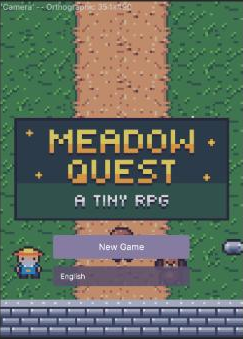
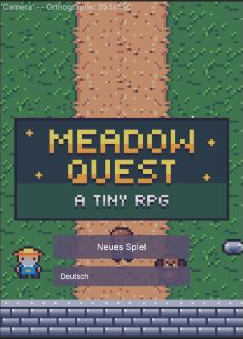
The title card said "press Space". Now the game opens on a menu you can click: New Game starts playing, and a dropdown switches the whole game between English and German.
How it works
The engine has a game-menu system, GameMenuModel. Buttons talk to it with a UiCommand node, and it shows or hides UI elements by name:
| Element name | Shown when |
|---|---|
MainPage | the menu is open (at the start) |
HudPage | the game is running (after New Game) |
The game.new command switches from the menu to the game; the language picker uses
setting.commit:ui.lang and settings.apply. You only need to name your panels right; the system
is added to the scene by itself as soon as a UI script uses UiCommand.
How to build it
- A logo without "press Space". Paint
mq-logo.png(96×48, the title card with A TINY RPG underneath), or import it from this part's assets. SelectTitleand click its image slot to pickmq-logo.png. - TitleScreen no longer starts the game. Delete its ActionPressed Jump Branch and the
nodes in it, and give the remaining Branch an
elsethat parks the logo at (200, 240):
//!tgscript v1
//! script name=TitleScreen
//! region graph
//! node 1 OnUpdate pos=(60,80)
export function onUpdate(ctx) {
    //! node 2 GetGlobal pos=(260,120) global=started
    const n2_value = ctx.getGlobal("started");
    //! node 3 ConstNumber pos=(260,240)
    const n3_value = 0.50;
    //! node 4 Less pos=(460,120)
    const n4_out = (n2_value < n3_value);
    //! node 20 GetGlobal pos=(260,340) global=over
    const n20_value = ctx.getGlobal("over");
    //! node 21 Less pos=(460,340)
    const n21_out = (n20_value < n3_value);
    //! node 22 And pos=(460,220)
    const n22_out = (n4_out && n21_out);
    //! node 5 Branch pos=(660,80)
    if (n22_out) {
        //! node 6 FindEntity pos=(660,260) entity=Camera
        const n6_value = ctx.findEntity("Camera");
        //! node 7 GetEntityPosition2D pos=(860,260)
        const n7_value = ctx.getEntityPosition2D(n6_value);
        //! node 8 SetPosition2D pos=(1060,80)
        ctx.setPosition2D(n7_value);
    } else {
        //! node 9 ConstVec2 pos=(860,400)
        const n9_value = ctx.vec2(200.00, 240.00);
        //! node 10 SetPosition2D pos=(1060,240)
        ctx.setPosition2D(n9_value);
    }
}
//! endregion- The menu page. Select
MeadowHud, then UI > Panel. Rename itMainPage, pick the stretch anchor preset, and give it a dark tint with A about0.35, so the meadow shows through. - The button. With
MainPageselected, UI > Button. Rename itMenuNewGame; center anchor preset, Pos Y250, Width440, Height76. Set its label's text to@menu.newgame, a key the engine already translates ("New Game", "Neues Spiel"). - The language picker. With
MainPageselected, UI > Dropdown. Rename itOptLanguage; center, Pos Y345, Width440, Height64. Its list needs exactly two items, English first, then Deutsch, with the texts@opt.lang.enand@opt.lang.de: the menu system maps the first item toenand the second tode. - The scripts. Create these two and put each in its element's Script slot in the Inspector:
MenuPlay, on MenuNewGame: when clicked, start the game and switch the menu to the game page.
//!tgscript v1
//! script name=MenuPlay
//! region graph
//! node 1 OnUiEvent pos=(60,80)
export function onUiEvent(ctx) {
    //! node 2 UiClicked pos=(60,200)
    const n2_value = ctx.uiClicked();
    //! node 3 Branch pos=(260,80)
    if (n2_value) {
        //! node 4 ConstNumber pos=(260,240)
        const n4_value = 1.00;
        //! node 5 SetGlobal pos=(460,80) global=started
        ctx.setGlobal("started", n4_value);
        //! node 6 UiCommand pos=(660,80) command="game.new"
        ctx.uiCommand("game.new");
    }
}
//! endregion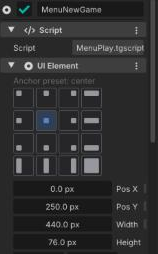
MenuLanguage, on OptLanguage: when a language is picked, commit and apply it.
//!tgscript v1
//! script name=MenuLanguage
//! region graph
//! node 1 OnUiEvent pos=(60,80)
export function onUiEvent(ctx) {
    //! node 2 UiValueCommitted pos=(60,200)
    const n2_value = ctx.uiValueCommitted();
    //! node 3 Branch pos=(260,80)
    if (n2_value) {
        //! node 4 UiCommand pos=(460,80) command="setting.commit:ui.lang"
        ctx.uiCommand("setting.commit:ui.lang");
        //! node 5 UiCommand pos=(660,80) command="settings.apply"
        ctx.uiCommand("settings.apply");
    }
}
//! endregionPlay: the menu opens over the meadow. Pick Deutsch and every key-based text switches at once; click Neues Spiel and the menu gives way to the game. When you lose, the restart brings you back to the menu.
Good practices
- Names are the contract. The menu system finds
MainPage,HudPage,MenuNewGameandOptLanguageby name. Rename one and it silently stops being managed. - Everything shown during play goes inside
HudPage. The quest line from Part 13 already lives there, so it stays hidden on the menu without a single extra node. - The menu changes pages; your scripts change the game.
game.newdoesn't load a scene or set your variables.MenuPlaysetsstarteditself, and every gameplay script already waits for it. - Use keys for menu text.
@menu.newgamecomes translated; a literal "New Game" would stay English in every language. Part 16 adds keys of your own. - Make the menu readable over the game. A dark, see-through page keeps the world visible and the buttons legible.
This part's assets
MenuPlay.tgscript ·
MenuLanguage.tgscript ·
TitleScreen.tgscript ·
MeadowHud.uidoc ·
mq-logo.png (the image with its .mt).
