Tutorial: Meadow Quest (2D RPG)
3. Hero & camera
Add the hero as a 2D sprite with a physics body, and a 2D camera to look through.
How to add the hero
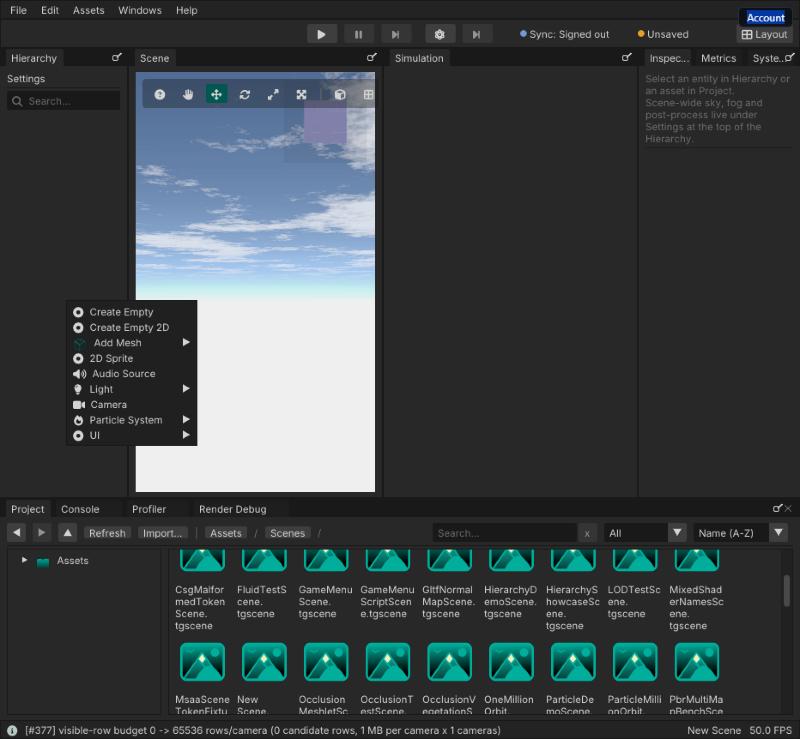
- Right-click the Hierarchy, then 2D Sprite. A white square appears.
- Press F2 and rename it
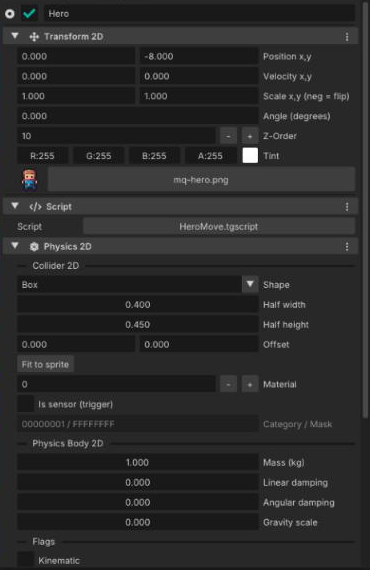
Hero, with exactly this spelling and capital H. The scripts find it by this name. - In the Inspector's Transform 2D section:
- Position:
0,-8(near the bottom of the path); - Scale: leave it at
1,1: a 16×16 image at scale 1 is exactly one tile; - Z-Order:
10, so the hero is drawn above the map; - click the image slot (it reads
white.png), typeheroin the filter, and pickmq-hero.png.
- Position:
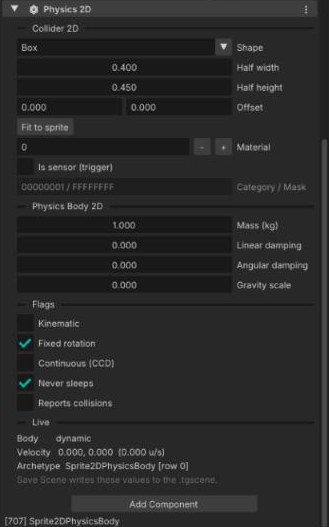
- Add Component > Physics Body 2D. This gives the hero a box collider and a velocity, so that walls can stop it.
- In the Physics 2D section, set:
- Half width
0.4and Half height0.45, a little smaller than the tile, so the hero slips through 1-tile gaps; - Gravity scale
0, so the hero doesn't fall down the screen; - tick Fixed rotation, so it doesn't spin when it bumps into things;
- tick Never sleeps, so a resting body still reacts to the keyboard at once.
- Half width
How to add the camera
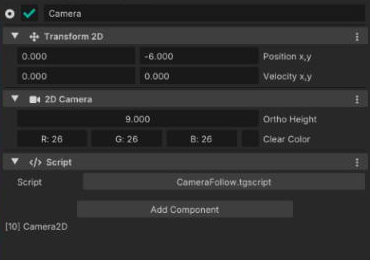
- Right-click the Hierarchy, then Create Empty 2D. Rename it
Camera. - Set its Position to
0,-6. - Add Component > 2D Camera. The Simulation panel now shows the world through it.
- In the 2D Camera section, set Ortho Height to
9: the view is 9 tiles tall.
Press ▶ Play to check: you see the meadow, the path and the hero. Nothing moves yet. Press ■ Stop, then save with Ctrl+S.
Good practices
- Scale = size in tiles. With 16 px per unit, a 16×16 sprite always has scale 1×1. If a character should be bigger, draw it bigger (32×32 at scale 2×2), don't stretch it.
- Colliders slightly smaller than the art make movement forgiving. Players blame the game when a character snags on a corner it visibly cleared.
- Top-down games need zero gravity. A new scene has normal downward gravity and the editor
has no scene-wide gravity setting yet, so set Gravity scale to
0on every Physics Body 2D. - Choose the camera height for the mood. A small Ortho Height (8–10 tiles) feels close and chunky; a big one (15+) shows more of the map and makes everything tiny. Pixel art looks crispest when each art pixel covers a whole number of screen pixels, so try a few heights in the Simulation panel and keep the one that looks sharpest.
- Z-Order by role: ground 0, decorations 1, walls 2–5, items 8, characters 9–10, overlays such as banners 50+.
This part's assets
mq-hero.png and its .mt. The finished scene with every entity is MeadowQuest.tgscene.

