Tutorial: The Village Gate (3D)
7. Title & HUD
Put the quest on screen with a UI canvas and a text element.
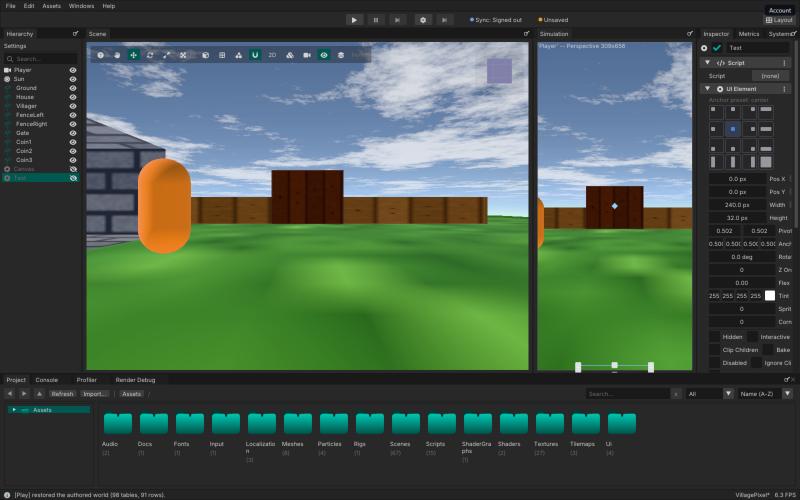
Add a screen canvas
- Right-click empty space in the Hierarchy, then UI > Canvas (Screen). A Canvas entity appears and is selected.
- With the canvas still selected, right-click again, then UI > Text. A Text entity appears under the canvas.
Write the quest
Select Text and, in the Inspector:
Under UI Element, click the top-centre square in the anchor preset grid, so the text sticks to the top of the screen.
Set Width to
900and Height to60, and Pos Y to-40to move it down a little from the edge.Scroll to Text Style. In the text box at the top of that section, type:
Greet the villager, pass the gate, find the three golden coins.and press Enter. The text only applies when you press Enter.
Set Size to
32and Align to Center.
A title panel (optional)
Add UI > Panel under the canvas, anchor it to the centre, give it a dark, semi-transparent Tint, and put a large Text reading The Village Gate inside it.
Save the scene. Saving also writes the canvas to a .uidoc file next to it.
Play-test
Press Play: the quest line sits over the game view.