Tutorial: Meadow Quest (2D RPG)
13. A quest line on screen
A UI canvas with one line of text that a script keeps up to date with SetText and SetTextNumber, telling the player what to do next.
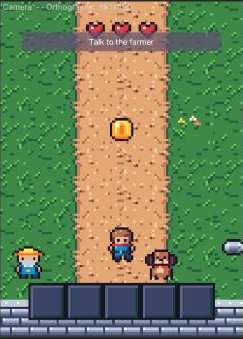
The game now tells the player what to do next, in one line at the top of the screen:
| When | The line says |
|---|---|
| on the title screen | Meadow Quest |
| no sword yet | Talk to the farmer |
| fewer than 2 slimes defeated | Slimes left: 2, then 1 |
| fewer than 3 coins | Coins to find: 3, 2, 1 |
| the gate is open | Open the chest! |
| you won | You did it! |
The line is UI text, not a sprite: a script can change it while the game runs, and it uses a real font, so it is sharp at any size.
How to make the canvas
- Right-click the Hierarchy, then UI > Canvas (Screen). Rename it
MeadowHud. - With
MeadowHudselected, right-click the Hierarchy, then UI > Panel. Rename itHudPage, pick the stretch anchor preset (the bottom-right one) and set its tint's A to0. It is an invisible frame for everything shown during play; the menu in Part 15 hides and shows it by this name. - With
HudPageselected, UI > Panel again. Rename itQuestPanel. In its UI Element section, click the top-centre anchor preset, then set Pos Y100, Width640and Height60(the canvas is 1920×1080 units, scaled to the view). Give it a dark, slightly see-through tint so the text reads on grass. - With
QuestPanelselected, UI > Text. Rename itQuestText. Pick the stretch anchor preset (the bottom-right one) so it fills the panel, and in Text Style set the size to30, centre it, and typeMeadow Questin the text box (press Enter to apply).
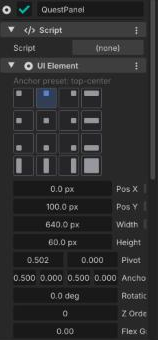
Save Scene also writes the canvas to its own .uidoc file.
How to write the script
A 2D Sprite QuestBook with its Tint A at 0 (it only carries the script), and the script
Quest. It reads the globals the other scripts already keep, and picks the line:
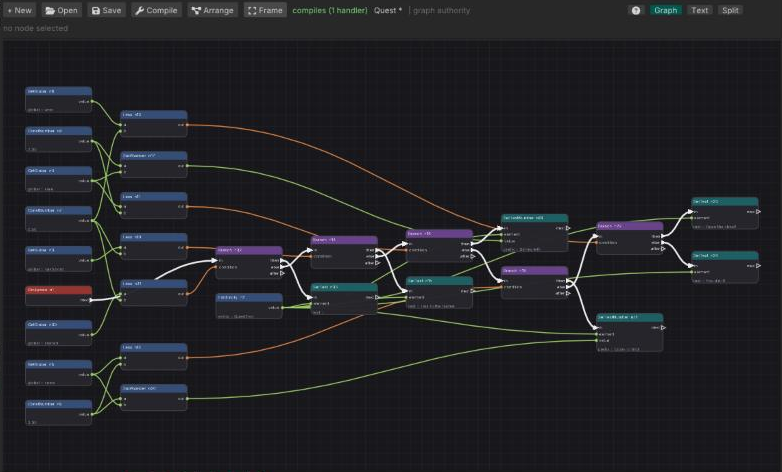
OnUpdate ─▶ Branch( started < 0.5 )        then: SetText "Meadow Quest"
            else Branch( hasSword < 0.5 )  then: SetText "Talk to the farmer"
            else Branch( slain < 2 )       then: SetTextNumber "Slimes left: " , 2 - slain
            else Branch( coins < 3 )       then: SetTextNumber "Coins to find: " , 3 - coins
            else Branch( won < 0.5 )       then: SetText "Open the chest!"
            else                                SetText "You did it!"
SetText writes its text attribute into the UI Text element wired to its element input;
FindEntity QuestText finds it by name. SetTextNumber writes its prefix followed by a
number: Slimes left: and 2 − slain show Slimes left: 1. Whole numbers print without decimals.
//!tgscript v1
//! script name=Quest
//! region graph
//! node 1 OnUpdate pos=(60,80)
export function onUpdate(ctx) {
    //! node 2 FindEntity pos=(60,220) entity=QuestText
    const n2_value = ctx.findEntity("QuestText");
    //! node 3 GetGlobal pos=(60,320) global=hasSword
    const n3_value = ctx.getGlobal("hasSword");
    //! node 4 GetGlobal pos=(60,420) global=slain
    const n4_value = ctx.getGlobal("slain");
    //! node 5 GetGlobal pos=(60,520) global=coins
    const n5_value = ctx.getGlobal("coins");
    //! node 6 GetGlobal pos=(60,620) global=won
    const n6_value = ctx.getGlobal("won");
    //! node 7 ConstNumber pos=(60,720)
    const n7_value = 0.50;
    //! node 8 ConstNumber pos=(60,820)
    const n8_value = 2.00;
    //! node 9 ConstNumber pos=(60,920)
    const n9_value = 3.00;
    //! node 10 Less pos=(260,320)
    const n10_out = (n3_value < n7_value);
    //! node 11 Less pos=(260,420)
    const n11_out = (n4_value < n8_value);
    //! node 12 Less pos=(260,520)
    const n12_out = (n5_value < n9_value);
    //! node 13 Less pos=(260,620)
    const n13_out = (n6_value < n7_value);
    //! node 30 GetGlobal pos=(60,1020) global=started
    const n30_value = ctx.getGlobal("started");
    //! node 31 Less pos=(260,1020)
    const n31_out = (n30_value < n7_value);
    //! node 32 Branch pos=(460,1020)
    if (n31_out) {
        //! node 33 SetText pos=(660,1020) text="Meadow Quest"
        ctx.setText("Meadow Quest", n2_value);
    } else {
    //! node 14 Branch pos=(460,80)
    if (n10_out) {
        //! node 15 SetText pos=(660,80) text="Talk to the farmer"
        ctx.setText("Talk to the farmer", n2_value);
    } else {
        //! node 16 Branch pos=(660,240)
        if (n11_out) {
            //! node 17 SubNumber pos=(660,420)
            const n17_out = (n8_value - n4_value);
            //! node 18 SetTextNumber pos=(860,240) prefix="Slimes left: "
            ctx.setTextNumber("Slimes left: ", n2_value, n17_out);
        } else {
            //! node 19 Branch pos=(860,400)
            if (n12_out) {
                //! node 20 SubNumber pos=(860,560)
                const n20_out = (n9_value - n5_value);
                //! node 21 SetTextNumber pos=(1060,400) prefix="Coins to find: "
                ctx.setTextNumber("Coins to find: ", n2_value, n20_out);
            } else {
                //! node 22 Branch pos=(1060,560)
                if (n13_out) {
                    //! node 23 SetText pos=(1260,560) text="Open the chest!"
                    ctx.setText("Open the chest!", n2_value);
                } else {
                    //! node 24 SetText pos=(1260,720) text="You did it!"
                    ctx.setText("You did it!", n2_value);
                }
            }
        }
    }
    }
}
//! endregionGood practices
- The text follows the state. The quest line keeps no memory of its own: every frame it looks
at
hasSword,slain,coinsandwonand shows the matching line, so it can never fall out of step with the game. - One script writes a text element. If two scripts set
QuestText, the last one each frame wins and the line flickers between them. - UI text for words that change, pixel art for words that don't. The GAME OVER plaque and the speech bubbles are painted sprites that match the art; the quest line changes, so it is UI text.
- Keep HUD text short and in one place. One line under the hearts is easy to glance at; sentences belong in dialogue.
- Give text a backing. White text on grass and sand is hard to read; a dark panel behind it fixes that on every background.
This part's assets
Quest.tgscript · MeadowHud.uidoc
The downloadable MeadowHud.uidoc is the finished canvas: it also has the menu page from
Part 15 and an empty QuestCount text from Part 16.