Tutorial: Meadow Quest (2D RPG)
1. Paint the sprites
Paint the characters, props and tiles at 16 pixels per unit with a shared palette, and save them as textures.
What you need
| File | Size | What |
|---|---|---|
mq-hero.png | 16×16 | the hero |
mq-pet.png | 16×16 | the beagle |
mq-coin.png | 16×16 | a coin |
mq-chest.png | 16×16 | the treasure chest |
mq-gate.png | 48×16 | the gate: three tiles wide |
mq-grass.png, mq-grass2.png, mq-flowers.png | 16×16 | grass tiles (three variants) |
mq-path.png, mq-path-left.png, mq-path-right.png | 16×16 | the path, and its two grassy edges |
mq-wall.png | 16×16 | stone wall tile |
mq-bush.png, mq-rock.png | 16×16 | decorations |
mq-win.png | 64×32 | the WIN banner |
mq-title.png | 96×48 | the title card |
mq-farmer.png, mq-slime.png | 16×16 | the farmer and the slimes (Parts 9–10) |
mq-sword.png, mq-potion.png | 16×16 | items |
mq-heart.png | 8×8 | a heart for the health bar (scale 0.5) |
mq-gameover.png | 96×32 | the GAME OVER plaque (Part 14) |
mq-logo.png | 96×48 | the menu logo (Part 15) |
mq-invbar.png | 80×16 | the five-slot inventory bar |
mq-bubble-hello.png, mq-bubble-sword.png | 96×40 | the farmer's speech bubbles |
How to paint one
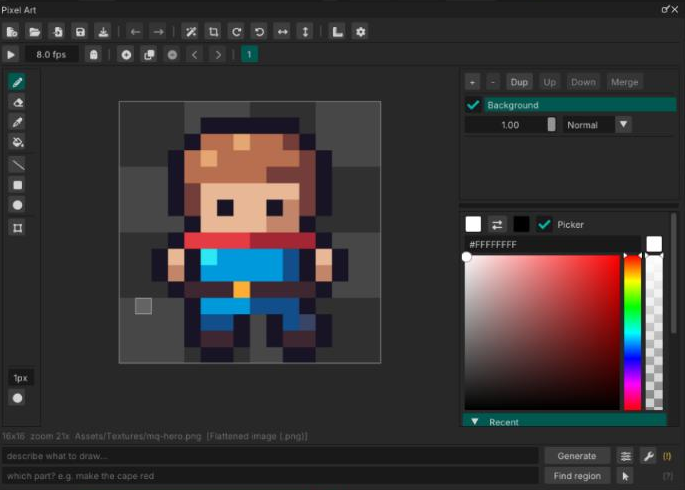
- Windows > Pixel Art. It opens with a 32×32 canvas. For a 16×16 sprite, click New (the first toolbar icon) and enter 16 × 16.
- Pick a colour: drag in the big square and the rainbow strip, or type a hex value into the
field above them (for example
0099DBfor the tunic). - Paint with the Pencil. Rectangle (with filled under the tools) and Flood fill are quick for blocks of colour. [ and ] change the brush size.
- Leave the background transparent: the canvas shows a checkerboard there.
How to save it
- Click Save As (the second disk icon in the toolbar).
- In the dialog's folder browser go to
Assets/Textures, type the name (for examplemq-hero) and pick Flattened image (.png): one merged image. - Click Save. The status line confirms where it was saved.
Good practices
- Text in sprites: the speech bubbles use a tiny 3×5 pixel font. Keep text dark on a light background, one pixel between letters, and centre each line.
- Keep 16 pixels per unit. Draw a one-tile thing at 16×16, a three-tile thing at 48×16. Later you set its scale to the size in tiles (1×1, 3×1), and every pixel matches the map's. Never draw a sprite at 16×16 and scale it to 1.5: its pixels become 1.5 times bigger than everyone else's.
- Use one small palette for everything. Meadow Quest uses colours from the free Endesga 32 palette. A shared palette is what makes separate sprites look like one game. Type the hex values into the picker, or keep them in the Recent list.
- Outline in a very dark colour, not pure black. The sprites here use
181425, a dark purple, which looks softer than000000. - Light from the top left. Put highlights on top-left edges and shadows bottom-right, on every sprite. Consistent light makes the scene read as one world.
- Make tiles seamless. Grass and path tiles repeat edge to edge. Turn on Tile preview in the toolbar to see the tile repeated and spot seams. Keep each tile's detail low and even, or the repetition shows.
- Several variants beat one detailed tile. Two grass tiles and a flower tile, mixed, look natural. One busy tile repeated looks like wallpaper.
- Name files with a prefix (
mq-) so they're easy to find and don't replace another game's textures: saving over an existing texture replaces it everywhere.
This part's assets
All images, each with its .mt file (import both so the UUIDs match):
mq-hero ·
mq-pet ·
mq-coin ·
mq-chest ·
mq-gate ·
mq-grass ·
mq-grass2 ·
mq-flowers ·
mq-path ·
mq-path-left ·
mq-path-right ·
mq-wall ·
mq-bush ·
mq-rock ·
mq-win ·
mq-title ·
mq-farmer ·
mq-slime ·
mq-sword ·
mq-potion ·
mq-heart ·
mq-invbar ·
mq-bubble-hello ·
mq-bubble-sword ·
mq-gameover ·
mq-logo


The .mt file sits next to each image: add .mt to the link (for example
mq-hero.png.mt). All of them are also in
meadow-quest.zip.
